
How to create a layout with CorelDRAW
Download .pdf
Creating business cards with CorelDRAW software. It takes only 8 steps to prepare a business card.
The standard size of a business card is 90 x 50 mm, but when preparing the business card for printing, we add 2 mm on all sides.
We open the CorelDRAW software:
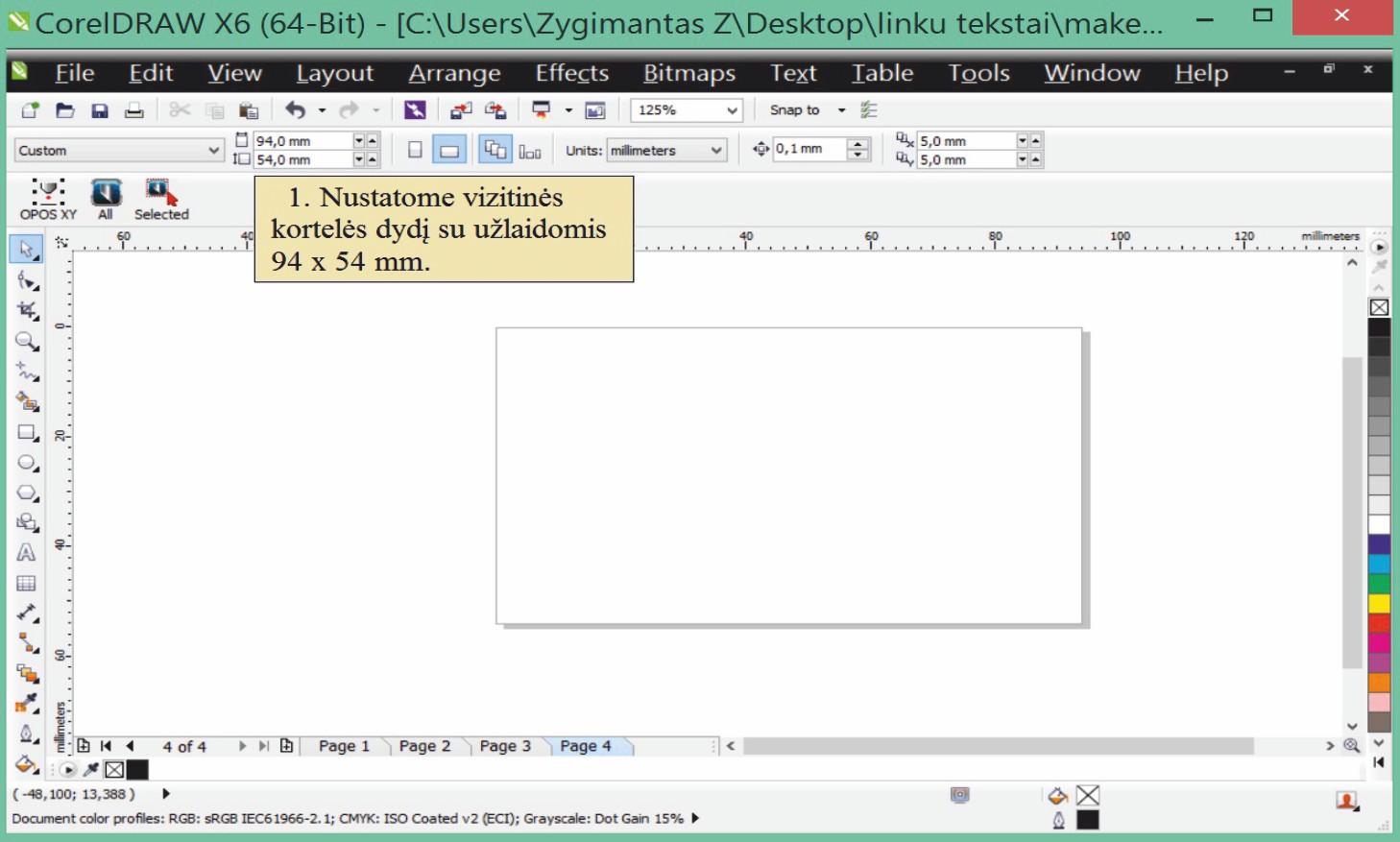
1. First we set the size of the business card with bleed to 94.0 mm x 54.0 mm
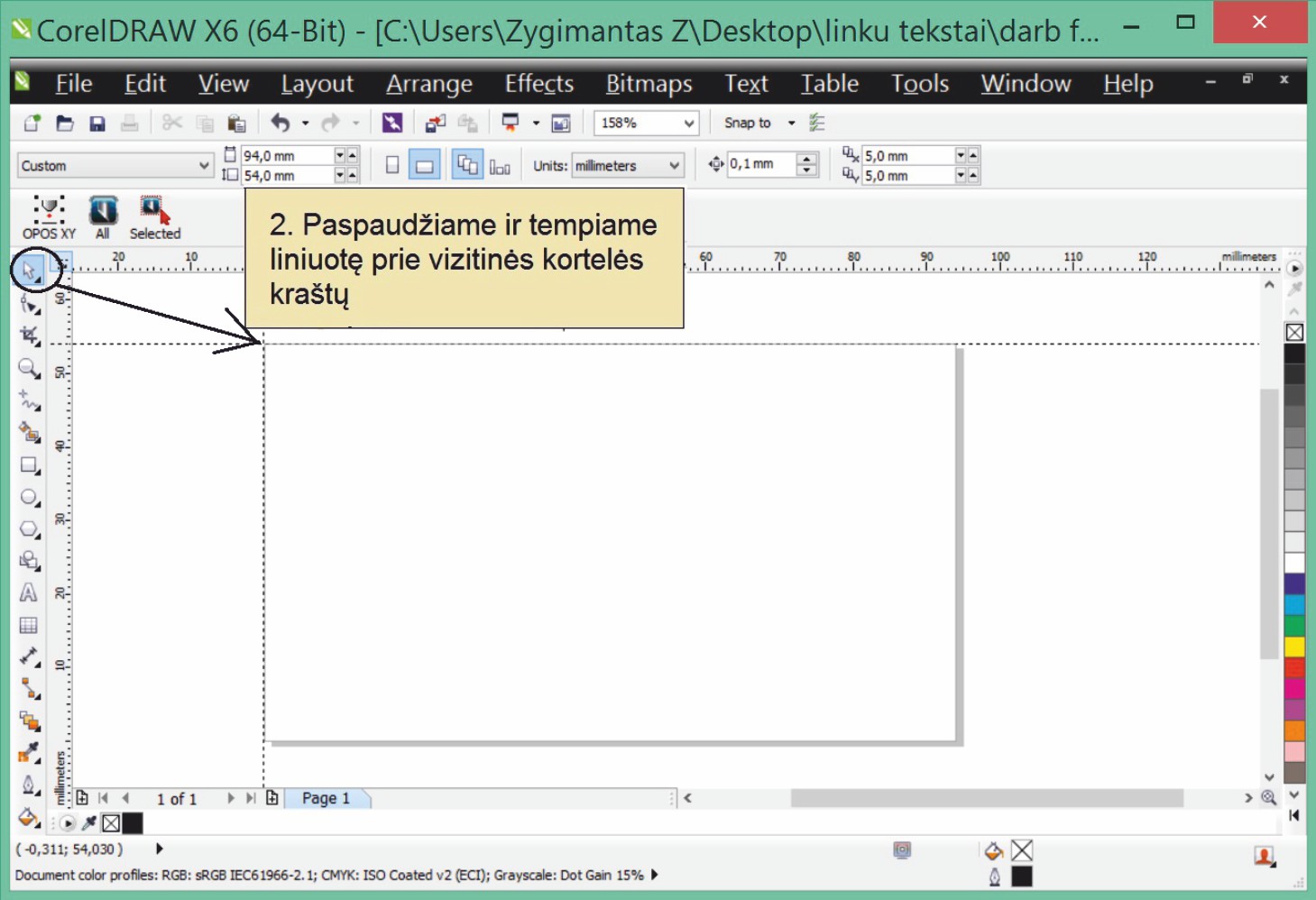
2. We click and drag the ruler to the edges of the business card.
.We place cutting and safe zone lines on the business card.
2.1 We drag the ruler, and mark the cutting line on the business card, 2mm from the left and right edges. Also 2 mm from the top and bottom.
2.2 We drag the ruler, and mark the safe zone line on the business card, 5 mm from the left and right sides from the edges of the business card. Also 5 mm from the top and bottom from the edges of the business card.
3. Click on the text icon marked with the letter A and enter the text.
4. Text alignment. We choose how we want to align the text, i.e. left alignment, right alignment, text column alignment from both sides, etc. (we can also move the text from one place to another.
5. We choose the font for the text.
It is necessary to curve the text font. We select the text on the layout and press Ctrl + Q.
It is very important to pay attention to the cutting lines. These lines indicate where your business card will be cut (the background of the business card must be extended to the edges of the business card).
It is very important to pay attention to the safe zone line as well. In the safe zone, we can place the necessary information this can be text, logo, image
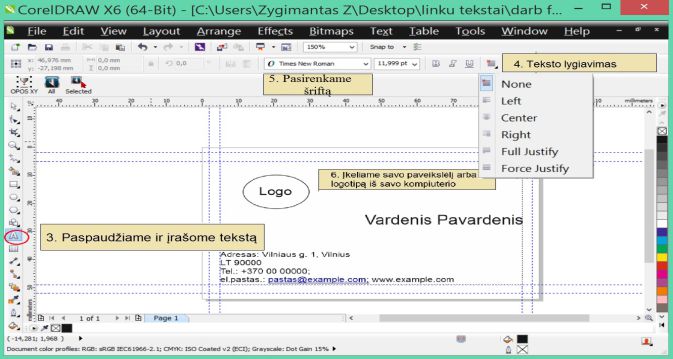
When uploading a logo or image from your computer to your business card, we choose File import.(Ctrl+l) and select where to upload the desired logo or image from.
It is important that the image is of good quality. Upload images or logos in .cdr; .eps; .pdf or .png format, these formats have no background (are transparent) and are the most suitable. It is necessary to convert all images or logos to BitMap (in the toolbar, we click Bitmaps-->Convert to BitMap).
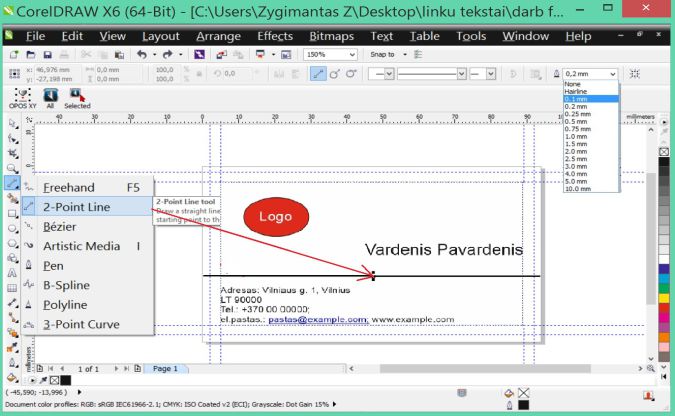
7. We can choose additional design elements for the business card.
We can save the business card in several ways.
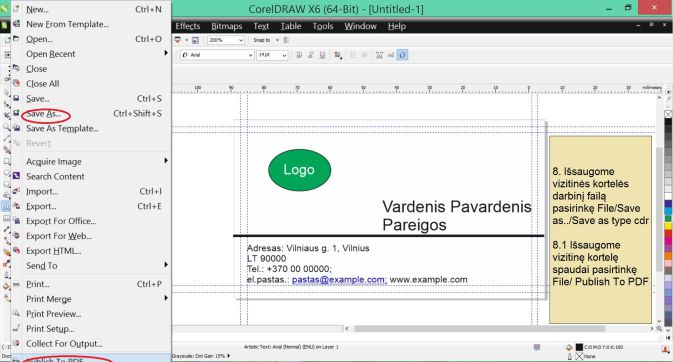
8. Saving the working file in .cdr format. Files are saved in this format so that you can edit your business card in the future if needed. We choose File/Save as/ and choose to save the file in .cdr format.
8.1 The file prepared for printing must be saved in .pdf format, we choose File/Publish to PDF. After entering the name we save the layout of the business card
How to upload a layout prepared for printing.
1. Select the size of the layout.
2. Enter the name of the layout.
3. Click Select file and upload the layout from your computer.
4. Click Confirm.